Tutorial
General notes
- Sample data for this tutorial is provided here.
- Tutorial images shown below are from GUARDD v.2011.07.01 and associated GUARDD-Session-Tutorial.mat file
- This tutorial is also compatible with GUARDD v.2011.09.11 and associated GUARDD-Session-Tutorial.mat file
- v.2011.09.11 session uses more points in grid search than the v.2011.07.01 session (150 vs. 60)
- See Manual for Glossary
- GUARDD utilizes multiple GUI windows (may need to be resized)
- Higher monitor resolution helps (1024x768 minimum)
- Matlab must remain open since it controls GUARDD
- GUARDD Main window must remain open since it controls other GUI windows
- Check Matlab command window for additional output
- GUARDD is sometimes slow. Turn on CPU monitor to see when program is processing
- Win: Ctrl+Alt+Del, click Task Manager, watch icon in task bar
- Mac: Applications folder → Utilities folder → launch Activity Monitor
- “Tooltips” are revealed by hovering mouse cursor over buttons, tables, etc
Download and unpack files
- Download Files here.
- Unpack files
- E.g., /home/user/Desktop/ or C:My_Favorite_Folder\
Ensure proper directory structure
- GUARDD–YYYY.MM.DD/ (Note: YYYY.MM.DD codes for the date (e.g.,2011.06.17))
- There should also be a “tutorial” folder present, along with many .m and .fig files
Start GUARDD
- Start Matlab
- Open Matlab command window: Desktop…Command Window
- Navigate to GUARDD/ directory and start program
- Matlab command window:
cd c:\My_Favorite_Folder\GUARDD--YYYY.MM.DD\
- Note: YYYY.MM.DD is replaced by the date corresponding to the GUARDD version (e.g., 2011.06.08)
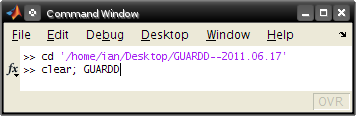
- To launch GUARDD, enter GUARDD in the command line:
clear; GUARDD
Important: Main window must remain open since it controls other GUI windows!
Check Matlab command window for additional output
Load data
Goal: Get Relaxation Dispersion data into the program for analysis
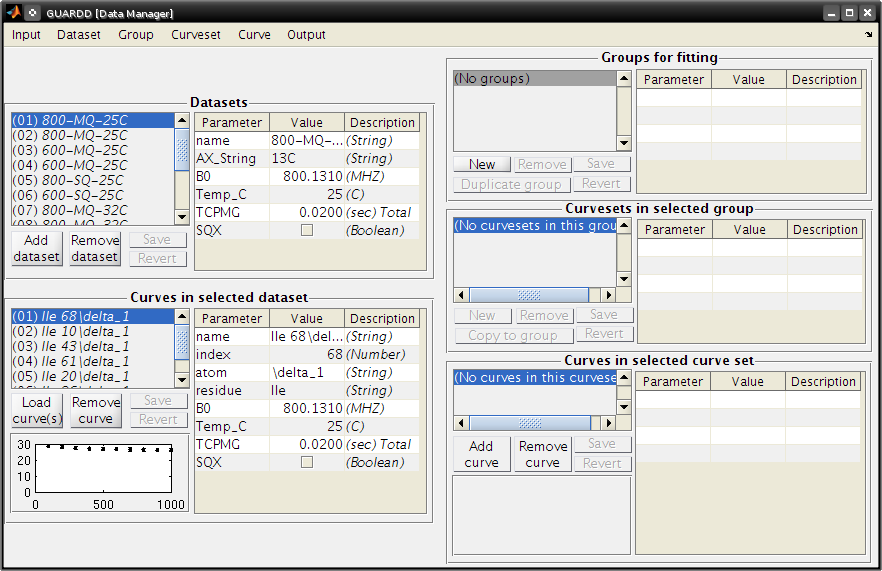
- From the Main GUARDD window, select the Input tab and click on Data Manager
- In the Data Manager window, select Input and click on Script
- Open the following file
tutorial/data/GUARDD-Data-ApoTRAP-Kleckner.txt
Note: There are two methods for importing your data to GUARDD
- Generate a data script
- Each data script will adhere to the following format
NAME:        "The name for your dataset"
AX:          "Nucleus (e.g. 13C, 15N)"
B0:          "External field strength in units of MHz (e.g. 800.130981)"
TEMPC:       "Temperature in units of degrees Celsius"
TCPMG:       "CPMG time in units of seconds"
SQX:         "Boolean; set this to True if you're analyzing a single quantum dataset. Set it to False otherwise."
SETSPECS:    "This will set the previous specifications for the current dataset"

INDEX:       "The identifier for the NMR signal. This is ideally a number (e.g. 26 if the signal corresponds to Ile26)"
ATOM:        "The atom being analyzed (e.g. NH, CO, \delta_1)"
Residue      "Three letter code for the amino acid being analyzed (e.g. Ile for Isoleucine)"
OBS          VCPMG           R2              ERROR
- OBS, VCPMG, R2 and ERROR are columns containing data from your CPMG experiment.
- OBS will turn observation mode on and is required. This column should be numbered 1 through N where N is the number of data points recorded
- The VCPMG column should contain your CPMG pulse frequencies
- R2 should contain your observed R2 values at each CPMG frequency
- ERROR is optional - this column should contain the errors, if known, for each measured R2 value.
- Example data script: tutorial/data/GUARDD-Data-ApoTRAP-Kleckner.txt
- An nlin.tab file from NMRPipe (containing your peak information) and a vcpmg.txt file (containing your CPMG pulse frequencies) may be used.
- Examples…
- tutorial/data/example_files/TRAP-SteApo-A26I-25C-800MHz-MQ-14ppm-nlin.tab
- tutorial/data/example_files/TRAP-SteApo-A26I-25C-800MHz-MQ-14ppm-taufile.txt
14 datasets loaded
- 600 and 800 MHz
- 25, 32, and 37oC
- SQ and MQ coherence
Create groups for fitting
- Goal: Aggregate RD curves from the same NMR signal (assignment) for group fitting
Essential notes on data organization
- Datasets designate experimental conditions
- Datasets contain Curves, which contain RD data
- Curves are aggregated across common NMR probes (assignment) into Curvesets (to share Δω values)
- Curvests are aggregated across different NMR probes into Groups (to share kex and PA)
- Details regarding data organization are discussed in the Manual
- Open the Data Manager window
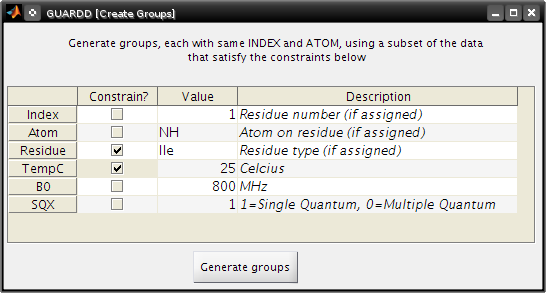
- Select the Group tab and click on Generate from subsets of data
- Create Groups
- Make groups only for Ile residues at 25oC
- Check Residue
- Type Ile
- Check TempC
- Type 25
- Click Generate Groups
Data Manager
Group…Generate from subset of data…
- Create Groups
- Make groups only for index 22
- Check Index
- Type 22
- Click Generate groups
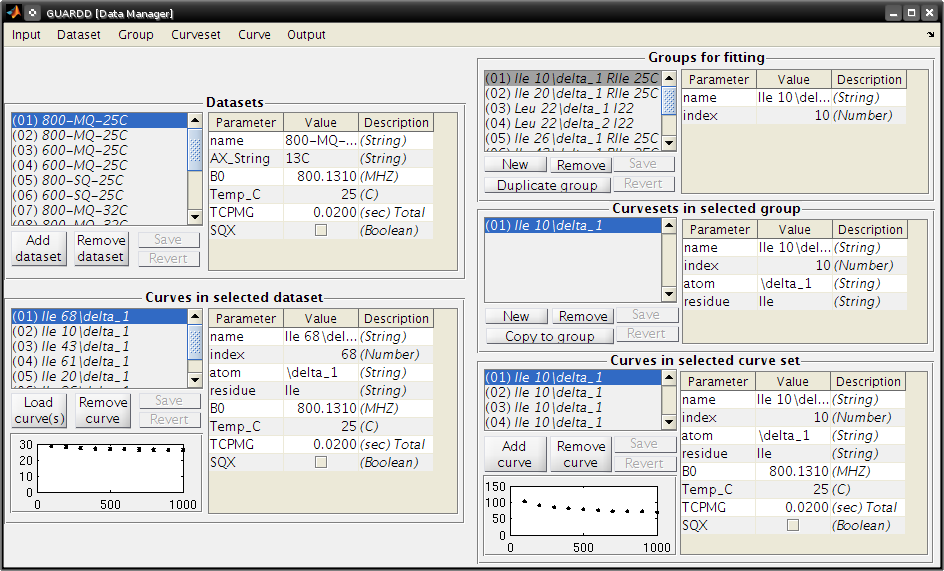
Data Manager
- Select the Group tab and click on Sort Groups
- Close the Data Manager window
Select groups that exhibit exchange
- Goal: Determine which groups exhibit flexibility, and therefore warrant further analysis
- For details, read more about describing dispersions in the Manual
Select Groups
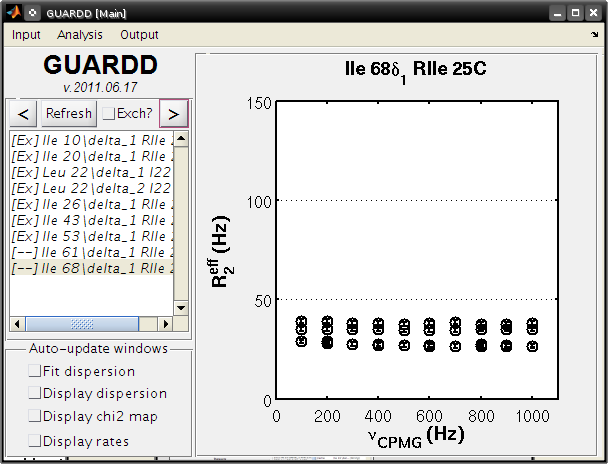
- In the Main window, click the Refresh button to show loaded groups
- Use < and > to cycle through groups
- Check Exch? if the data are not horizontal (i.e., if Rex > 0)
- Note: all residues exhibit exchange except Ile 61δ1 and Ile 68δ1
Fit RD data
Goal: Obtain best-fit values for the 4-5 parameters required to describe each curve
- ΔωH = 1H chemical shift difference between states A and B (ppm, rad/s, Hz) - MQ only
- ΔωX= AX chemical shift difference between states A and B (ppm, rad/s, Hz)
- PA = Population fraction of A state (fraction, %)
- kex = kA + kB = Total exchange rate between states (/s)
- R20 = Transverse relaxation rate in the absence of exchange (Hz)
Fit simple group manually
Goal: Use Fit RD window to manually fit one group
- Determine optimal PA and kex at each temperature (x1) → propagate to all curves in group
- Determine optimal ΔωH and ΔωX for each curveset (x1) → propagated to all curves in curveset
- Determine and R20 for each curve (x4)
Goal: Demonstrate basic fitting options (Simulate vs. Optimize, Individual vs. Grid)
- Details: Read more about the Fit RD window in the Manual
Fitting
In the Main window: check the Fit Dispersion box
Select Ile 26
In the Analysis tab, click Fit RD
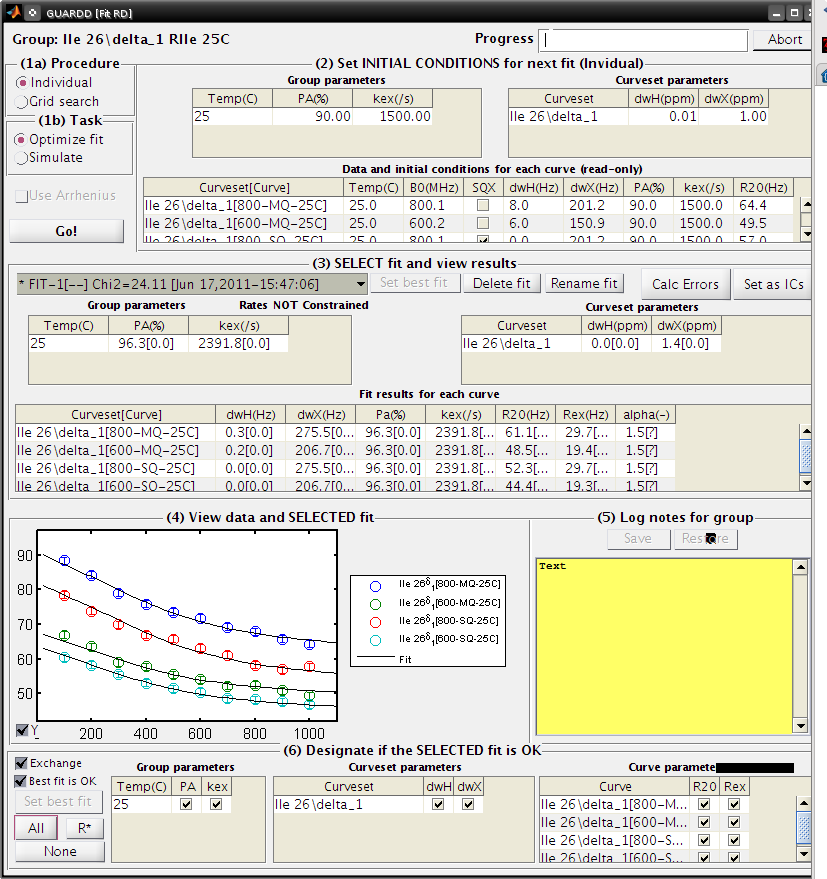
The Fit RD window contains 6 panels for sequential fitting tasks
(1a) Procedure: Individual
(1b) Task: Simulate
(2) INITIAL CONDITIONS: (Leave default)
- Note: Often, one may change starting PA, kex,
ΔωH, and ΔωX - To change starting R20, see https://groups.google.com/d/topic/guardd/A4c-3bn21Yk/discussion
Click Go! (1-5 sec)
- Note that these initial conditions are reasonable (fit is somewhat close to data)
(1b) Task: Optimize fit
- Click Go! (5-30 sec)
(3) SELECT fit and view results
There are three “fits” to the data: NoEx, Sim-1, and Fit-1
Select each at a time, and note that Fit-1 is the best (lines go through data in panel (4))
Select Fit-1
Click Set best fit
(6) Designate which parameters are OK
- Check Best fit is OK
- Click All
- Note In general, one should more carefully check if the best fit is OK.
- Guidelines for determining the quality of the fit can be found in the Manual.
- Note: If unsure about which initial conditions to use, the grid search fits multiple times with different initial conditions
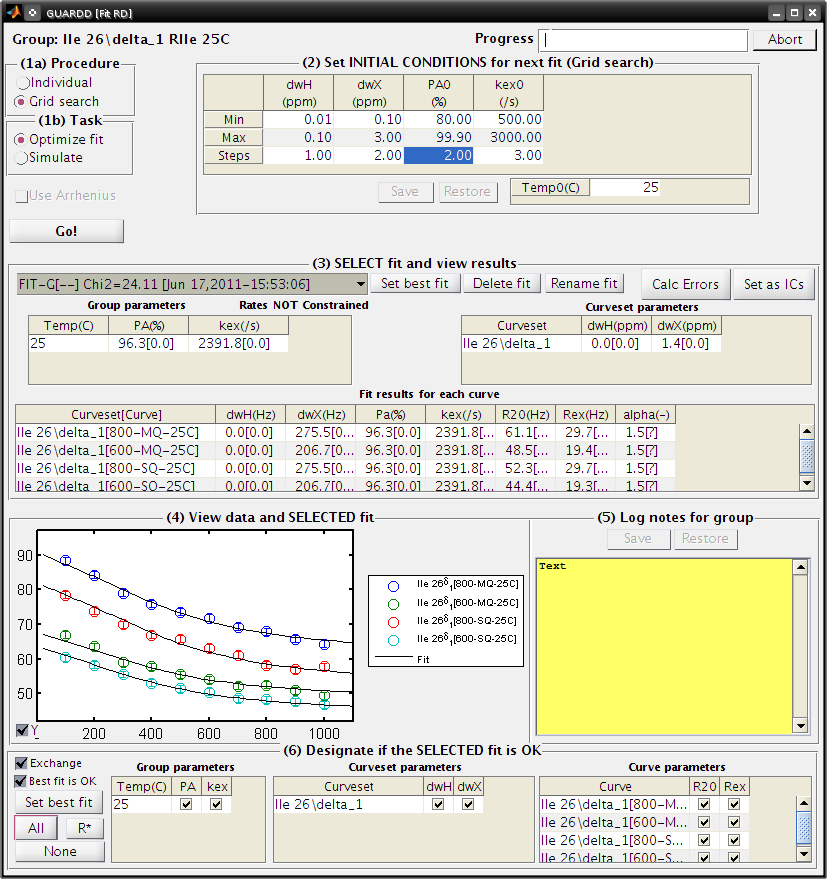
- (1a) Procedure: Grid search
- In the interest of time, use this relatively small grid
| dwH(ppm) | dwX(ppm) | PA0(%) | kex0(/s) |
|---|---|---|---|
| Min | 0.01 | 0.1 | 80 |
| Max | 0.1 | 3.00 | 99.9 |
| Steps | 1 | 2 | 2 |
- Click Save
- (1b): Task: Optimize fit
- Click Go! (5-10 sec/fit x 12 fits = 60-120 sec)
- Note: Progress can also be viewed in the MATLAB Command Window
- (3) SELECT fit and view results
- The Fit-G result listed is the best fit (lowest χ2) out of all the 12 fits in the grid search
- The remaining 11 fits can be viewed in the Chi2 Map window. See the Manual for directions on the χ2 Map.
- (6) Designate which parameters are OK
- Click All
Observe: Becuase the initial conditions used for Fit-1 above were appropriate, both Fit-1 and Fig-G yield the same result
- Note: The grid search can demonstrate success if the optimal fit is insensitive to inital conditions
- Note: Saving data and output plots are discussed later in this document.
Save GUARDD session to file
- In the Main GUARDD window, select the Output tab. Click Save Session As
- GUARDD will create an output folder named with the date, and suggest a filename for you
- Note: To change the default output folder, use the Settings window.
Tip: Save your work often (in case GUARDD and/or MATLAB crashes)
Fit multi-temperature group manually
Use Fit RD window to manually fit one group acquired at multiple temperatures
- Determine optimal PA and kex at each temperature (x3) via two methods (A and B) → propagate to all curves in group
- Determine optimal ΔωH and ΔωX for each curveset (x1) → propagated to all curves in curveset
- Determine and R20 for each curve (x10)
Demonstrate multi-temperature fitting options
- Method A (No rate constraint): Determine optimal PA and kex at each temperature
- Method B (Impose rate constraint): Determine optimal PA and kex at some temperature T0 with ΔH and EAB to determine PA and kex at an arbitrary temperature
- Details: Read more about assigning fitting parameters in the Manual.
Fit without rate constraints (Method A)
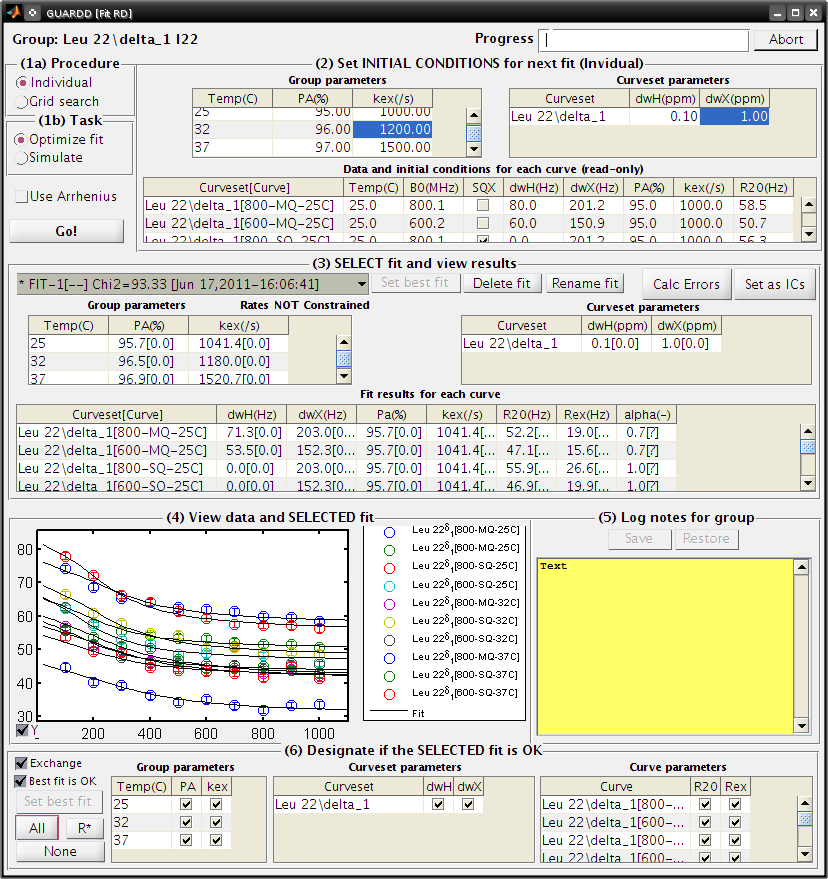
Main GUARDD window - Select Leu 22delta1 - The Fit RD window should automatically open (no double-click required) - If it does not open, check Fit dispersion then select Leu 22delta1
Fit RD Window - (1a) Procedure: Individual - (1b) Task: Simulate - Uncheck Use Arrhenius - Individual initial conditions
| Temp(C) | PA(%) | kex(/s) |
|---|---|---|
| 25 | 95 | 1000 |
| 32 | 96 | 1200 |
| 37 | 97 | 1500 |
| Curveset | dwH(ppm) | dwX(ppm) |
|---|---|---|
| Leu 22delta1 | 0.1 | 1 |
Click Go! (1-5 sec)
- Note that these initial conditions are reasonable (fit is somewhat close to data)
- (1b) Task: Optimize fit
- Click Go! (5-30 sec)
- (3) Select Fit-1[–] fit result
- Click Set best fit
- (6) Designate that all parameters are OK
- Check Best fit is OK
- Click All
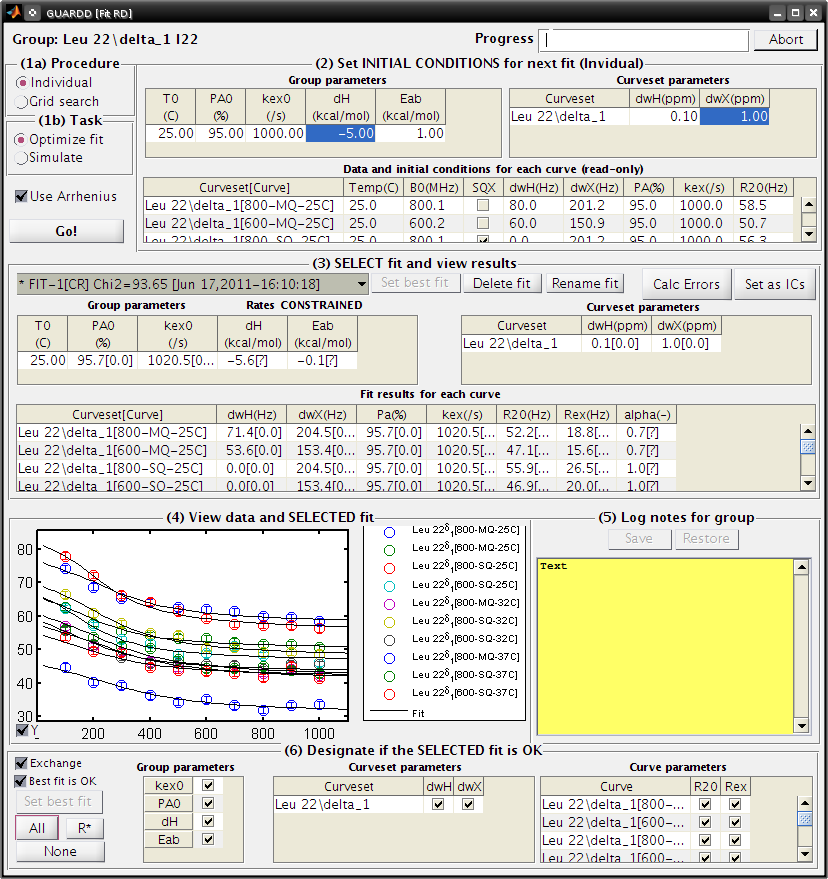
Fit with rate constraints (Method B)
Fit RD
- (1a) Procedure: Individual
- (1b) Task: Simulate
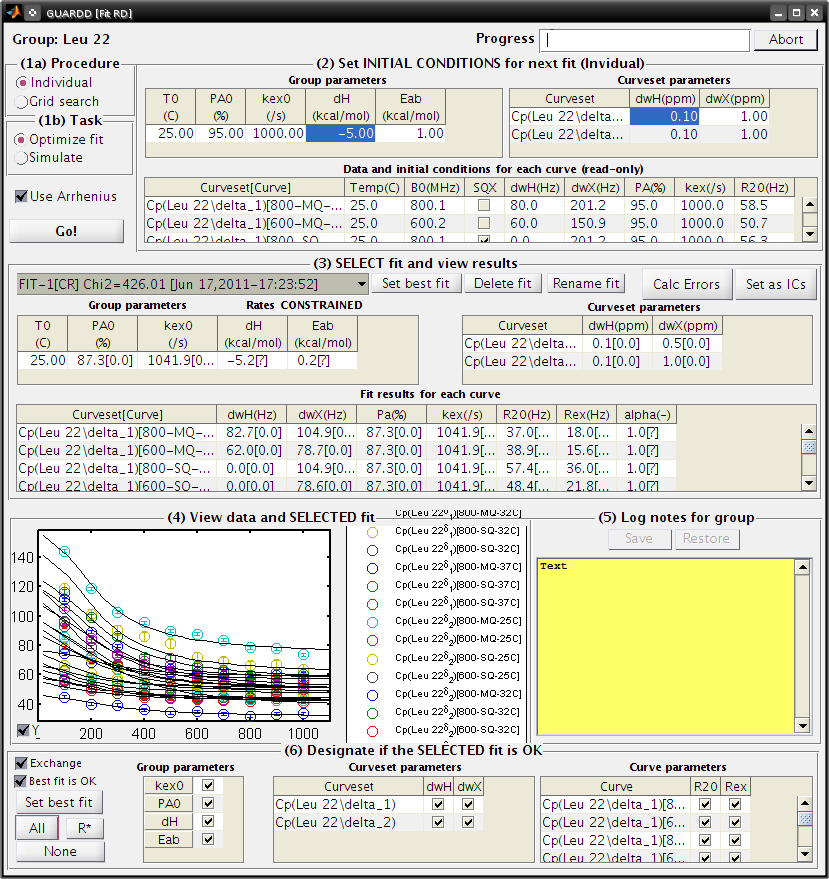
- Check Use Arrhenius
- (2) Individual initial conditions
| T0(C) | PA0(%) | kex0(/s) | dH(kcal/mol) | Eab(kcal/mol) |
|---|---|---|---|---|
| 25 | 95 | 1000 | -5 | 1 |
| Curveset | dwH(ppm) | dwX(ppm) |
|---|---|---|
| L22delta1 | 0.1 | 1 |
Click Go! (1-5 sec)
- Note that these initial conditions are reasonable (fit is somewhat close to data)
- (1b) Task: Optimize fit
- Click Go! (5-30 sec)
- (3) Select Fit-1[CR] fit result
- Click Set best fit
- (6) Designate that all parameters are OK
- Check Best fit is OK
- Click All
Examine rate analysis (vant Hoff and Arrhenius)
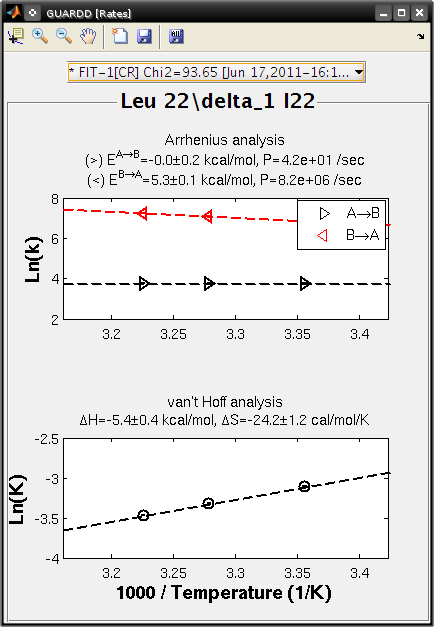
Use Rates window to examine temperature-dependence of rates (vant Hoff and Arrenius)
Main
- Make sure Leu 22delta1 is selected
- Select the Output tab and select Display Rates
- Select fit: Fit-1[–]
- The rates in this fit are independently determined for each temperature
- ΔH, EAB and EBA are extracted from the slopes
- Select fit: Fit-1[CR]
- The rates are constrained to lie along the line with slope ΔH, EAB or EBA
- Save the figure to a file
- Close Rates
View fits to RD data
Goals
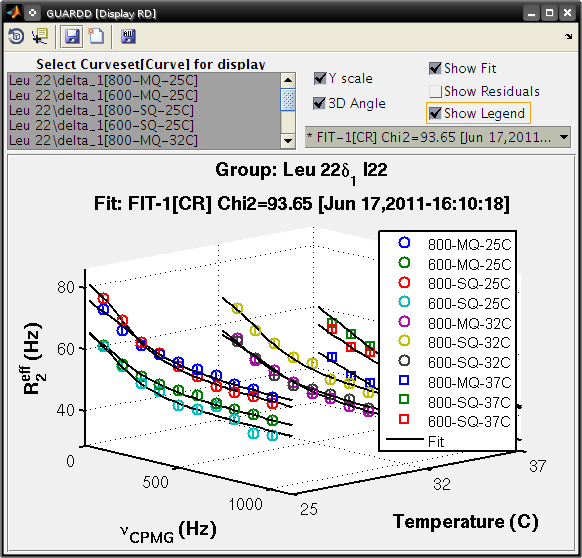
- Use Display RD window to assess the fit to the RD data, and prepare an output figure
- Create a 3D plot that highlights the amount of data in the set
Main
- Make sure Leu 22delta1 is selected
- Output…Display RD…
Display RD
- Select all the curves in the Curveset(Curve) list
- Select fit Fit-1[CR] from fit list
- Check Y scale to auto-scale the Y-axis for this group only
- Check 3D Angle
- Uncheck Show Residuals
- Click Save Figure to Disk icon in taskbar
- GUARDD will prepare a filename for saving, and you must type the file extension
- Type ps to save as a postscript file and click Save (or hit Enter)
Create a 2D plot with residuals that highlights the fit to some of the data
Display RD
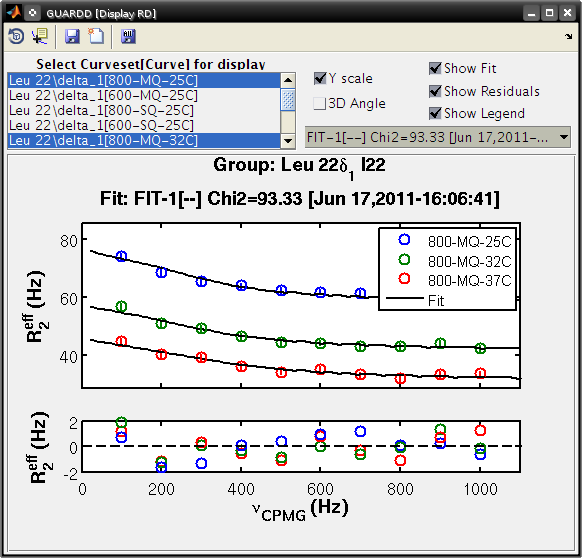
- Select only the following curves from the list
- Curve 1: 800-MQ-25C
- Curve 5: 800-MQ-32C
- Curve 8: 800-MQ-37C
- Select fit Fit-1[–] from fit list
- Uncheck 3D Angle
- Check Show Residuals
- Click Save Figure to Disk icon in taskbar
- GUARDD will prepare a new filename becuase it is a different fit number
- Type ps to save as a postscript file and click Save (or hit Enter)
- Close the Display RD window
Save the session often!
- Main
- Output…Save session as…
Create and fit a multi-curveset, multi-temperature group manually
Prepare and fit a relatively large group of data
Create a multi-curveset, multi-temperature group
Use Data Manager to create a group with multiple curvesets
Main
- Input…Data manager…
Data Manager
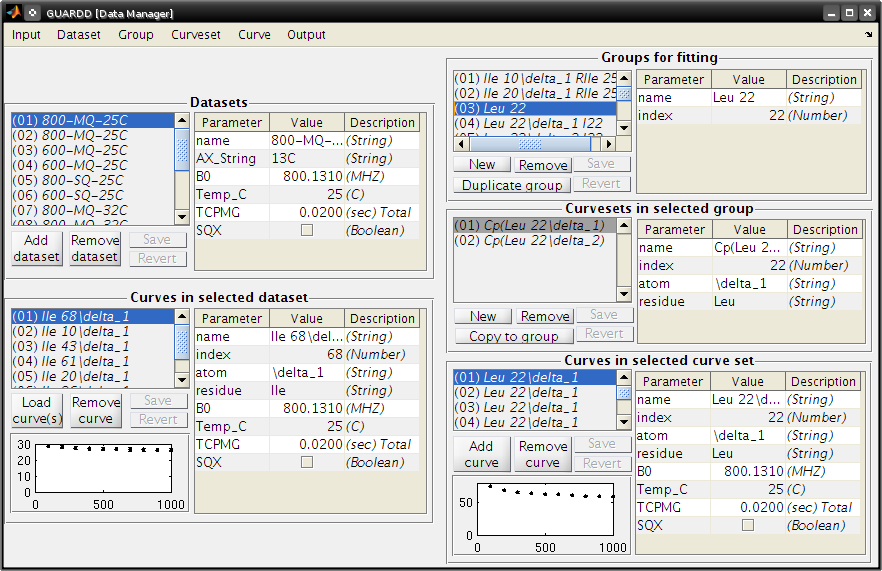
Create a new group for Leu 22
- Click New in the panel Groups for fitting
- Table on right, enter group name: Leu 22
- Table on right, enter group index: 22
- Click Save in the panel Groups for fitting
Add two curvesets to this new group
- Select group Leu 22delta1
- Select curveset Leu 22delta1
- Click Copy to group
Select Group
- Select group Leu 22 (at the bottom)
- Click Select
- Repeat this process with the second curveset, Leu 22delta2
Group -> Sort groups
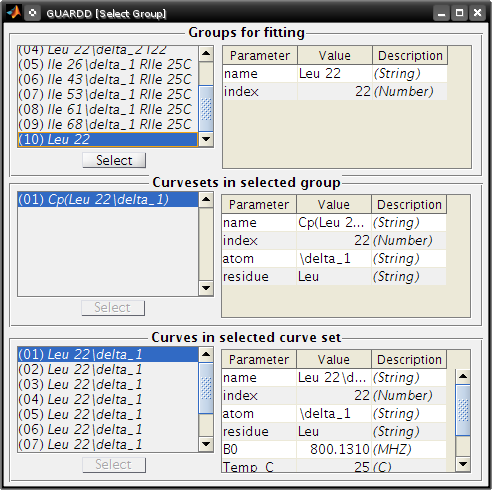
- Make sure that groupLeu 22contains two curvesets: Cp(Leu 22delta1)and Cp(Leu22delta2)
- Note: A copy (“Cp”) is made because this is a different curveset than the original, and therefore may contain a different set of curves (e.g., only one temperature, only MQ)
- It can be renamed if desired, with no adverse effects
- See the manual for more on organizing data
- Close Data Manager
Fit a multi-curveset, multi-temperature group
Use Fit RD window to manually fit one group containing multiple curvesets
Determine optimal PA and kex at each temperature (x3) → propagate to all curves in group
Determine optimal ΔωH ΔωX for each curveset (x2) → propagated to all curves in curveset
Determine and R20 for each curve (x20)
Main
- Uncheck Fit dispersion so the window does not open automatically
- Click Refresh so the new group appears
- Select Leu 22
- Check Exch?
- Analysis…Fit dispersion…
Fit RD
- (1a) Procedure: Individual
- (1b) Task: Optimize fit
- Uncheck Use Arrhenius
- (2) Individual initial conditions
| Temp(C) | PA(%) | kex(/s) |
|---|---|---|
| 25 | 95 | 1000 |
| 32 | 96 | 1200 |
| 37 | 97 | 1500 |
| Curveset | dwH(ppm) | dwX(ppm) |
|---|---|---|
| Cp(L22delta1) | 0.1 | 1 |
- Click Go! (50-100 sec)
- (3) Select Fit-1[–] fit result
- Click Set best fit
- (6) Designate that all parameters are OK
- Check Best fit is OK
- Click All
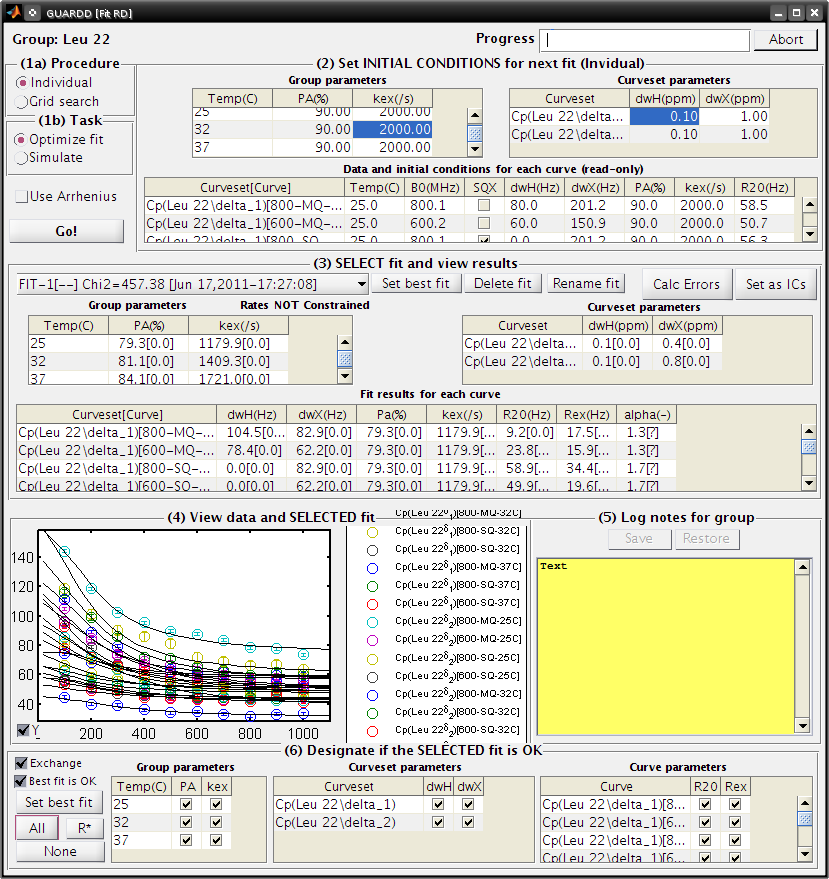
Demonstrate issue that some optimized fits are sensitive to initial conditions (especially noisy and/or many data)
Fit RD
- Fit without rate constraints
- (1a) Procedure: Individual
- (1b) Task: Optimize fit
- Uncheck Use Arrhenius
- (2) Individual initial conditions
| Temp(C) | PA(%) | kex(/s) |
|---|---|---|
| 25 | 90 | 2000 |
| 32 | 90 | 2000 |
| 37 | 90 | 2000 |
| Curveset | dwH(ppm) | dwX(ppm) |
|---|---|---|
| Cp(L22delta1) | 0.1 | 1 |
Click Go! (50-100 sec)
(3) Select Fit-1[–] fit result
(6) Designate that all parameters are OK
- Check Best fit is OK
- Click All
Observe: This optimized fit is significantly different than previous Fit-1[–]
| Fit | PA(%) | kex | Chi2 |
|---|---|---|---|
| First | 87.4 | 1094.0 | 394.78 |
| Second | 79.3 | 1179.9 | 457.38 |
- There are systematic ways to assess quality of fit. These methods are covered later in this tutorial
- Close Fit RD window
Save the session often
Main
- Output…Save session as…
Perform batch task
Fit several groups sequentially to obviate need for user input
Main
- Analysis…Batch task…
Batch
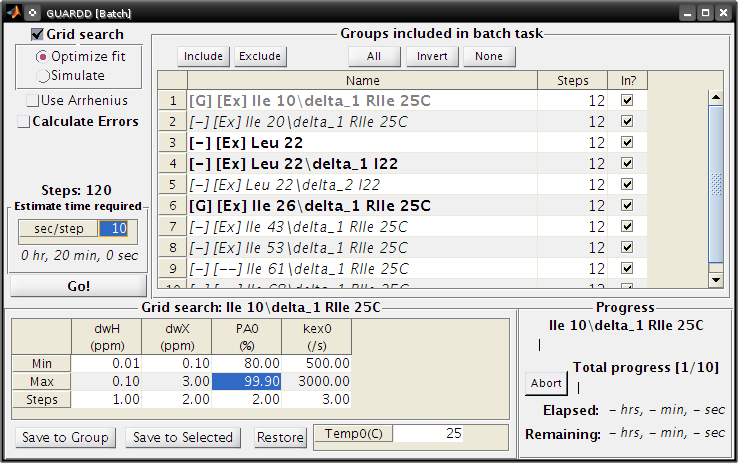
- Select groups for analysis
- Highlight rows corresponding to each group
- Click Include button
- Note: The checkboxes are read-only (not clickable, sorry!)
- Specify the task
- Grid search: Optimize fit
- Use Arrhenius: Unchecked
- Note: Fixing Arrhenius analysis adds two more dimensions to the grid search (dH and Eab)
- Errors: Unchecked
- Click on any one row to specify grid search limits
| dwH(ppm) | dwX(ppm) | PA0(%) | kex0(/s) | |
| Min | 0.01 | 0.1 | 80 | 500 |
| Max | 0.1 | 3.00 | 99.9 | 3000 |
| Steps | 1 | 2 | 2 | 3 |
- Note: The tutorial file included in GUARDD v.2011.09.11 session uses Steps = 2, 3, 5, 5 for a total of 150 points, instead of Steps = 1, 2, 2, 3 (60 points) shown here in v.2011.07.01
Click Save to Selected to save thid grid to all of the groups in the batch
Estimate time required
- This calculator will help plan the time required for an estimated steptime
- As seen in the tutorial, each fit step may take 5-100 sec, depending on the size of data and accuracy of initial conditions
- Estimate 10 sec/step, for a total of ~20 min
- Click Go!
Note: After each group step is done, a session file “GUARDD-Session–Batch_Progress.mat: is written to the default output directory
This was designed for two purposes
- In case the program crashes, progress is saved
- Allows the user to start a batch task on one computer (e.g., at work), then download/view the results remotely on another computer (e.g., at home)
Time for a break?
- This is a good stopping point in the tutorial, in case you want to resume later
- The batch task does not need to be completed
- The tutorial proceeds using a pre-saved GUARDD session
Assess quality of fit
Determine how well RD parameters are determined and which parameters are OK
- Increasingly challenging for larger and/or noisier datasets
Methods of assessment
Check fit to data and the resulting residuals
- A well-determined fit yields residuals randomly distributed about zero (i.e., not systematically shaped)
Check sensitivity of fit to initial conditions (grid search)
- A well-determined fit is insensitive to initial conditions
Check sensitivity of fit to errors in data (Monte Carlo errors)
- A well-determined fit yields a narrow set of MC-fits from Monte Carlo analysis
Check exchange-timescale parameter α
- Fast exchange (kex>>Δω; α→2.0) precludes knowledge of PA and Δω
- This is often evident in prior steps
Load GUARDD session with data already fit
Main
- Input…Load session…
- Select tutorial file:
tutorial/data/GUARDD-Session-Tutorial.mat
or
GUARDD-Session--Tutorial-After_Break.mat}}}
in v.2011.09.11
- This session contains data from above, with completed 60-point grid search and MC errors
- Focus on two examples
Leu 22delta1, a good fit with known parameters
- Medium dataset (10 curves)
- α = 1.0: intermediate exchange
- Grid search: fit is sensitive to ICs, but well-defined solution at min(χ2)
- MC Errors: model example, symmetric about optimum solution
- Parameters: All are known
Ile 43, a good fit with unknown parameters
- Small dataset (4 curves)
- α = 1.4-1.9: fast exchange
- Grid search: two solution with different values
- MC Errors: very wide, reflecting many fitting soltuions
- Parameters: PA and Δω unknown
View fit and residuals
Goal: View the RD fit and residuals to help assess fit quality
- Confer prior tutorial steps on using the Display RD window
View Grid Search Chi2 Map for good fit
Goal: Assess the extent to which fitting is sensitive to initial conditions
Key info on features of chi2 maps
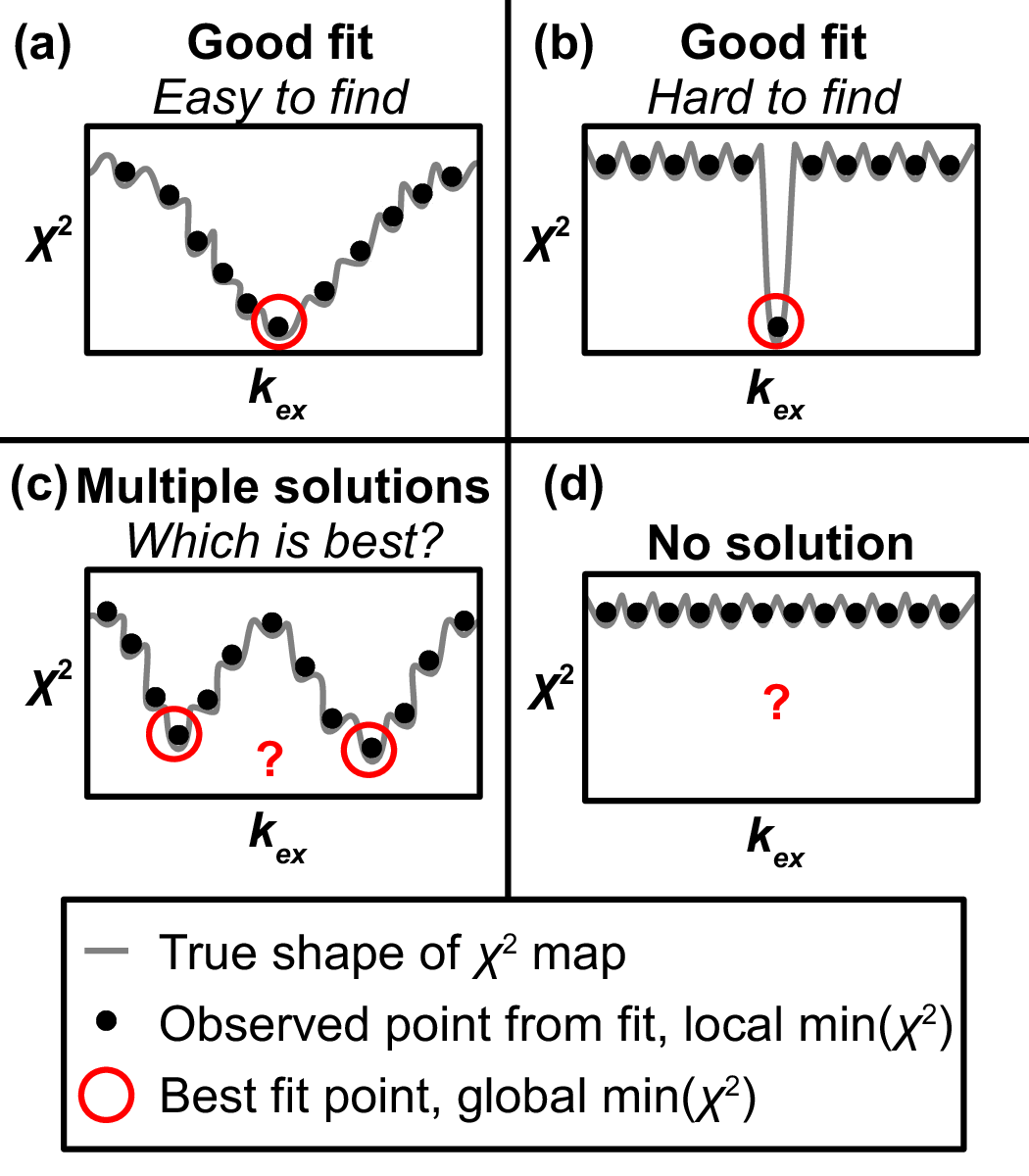
- A Chi2 map displays a set of parameter values (e.g., for kex) on the X-axis and the goodness of fit (χ2) associated with that value on the Y-axis
- The most precise fit is at the min(χ2)
- Chi2 maps take a variety of shapes, such as “.”, “U”, “W”, and “-“
- *Details*: Read more in the Manual
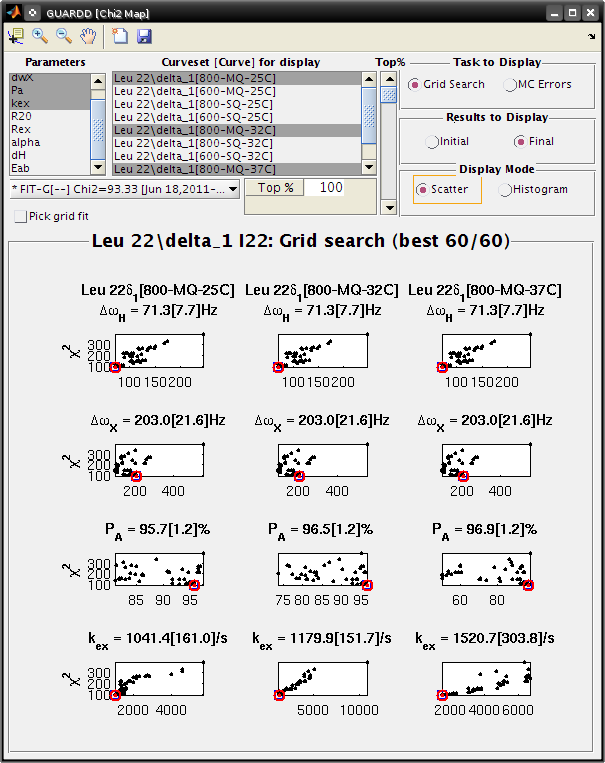
Goal: Use both Chi2 Map window and Fit RD window to view data
Main
- Select Leu 22delta1
- Output…Display chi2 map…
- Analysis…Fit dispersion…
Chi2 Map
- Parameters: dwH, dwX, Pa, kex
- Curveset (Curve): 800-MQ-25C, 800-MQ-32C, 800-MQ-37C
- Top% slider all the way to the top (100%)
- Fit: FIT-G[–] Chi2=93.33
- Task to Display: Grid Search
- Results to Display: Final
- Display Mode: Scatter
Goal: Interpret the Grid Search results the Chi2 Map window
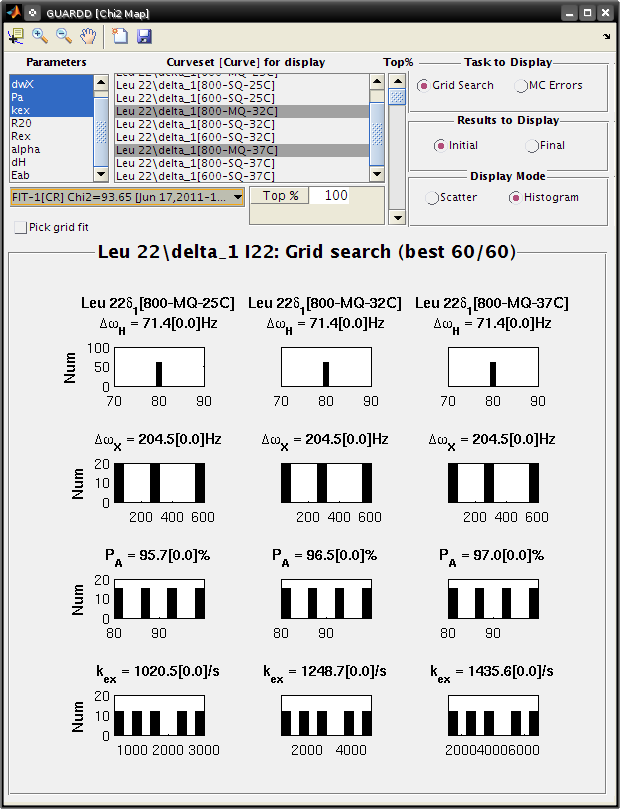
Each subplot shows a single parameter on the X-axis, and its different values in different fits
Each black point corresponds to ONE optimized fit result
There are 60 fits in this example (hence 60 points in each subplot), each of which started from a different location in parameter space (note tutorial file in GUARDD v.2011.09.11 uses 150 points instead of 60)
Those initial locations can be displayed by setting Results to display: Initial
The red circle designates the currently selected fit result
The blue square designates the best fit from the grid search
Clicking Pick grid fit will allow selection of any of the grid fits shown
- The green diamond designates the currently selected fit from the displayed grid list
- Any of these can be added to the list of fits, if desired
Observe: The fit to the no exchange model is inappropriate
Chi2 Map
- Select Fit: NoEx[–]
- The χ2 = 2163.58, which is very large
- The 60 optimized fits are well below this value
Fit RD
- Select Fit: NoEx[–]
- The fit is a poor representation of the data
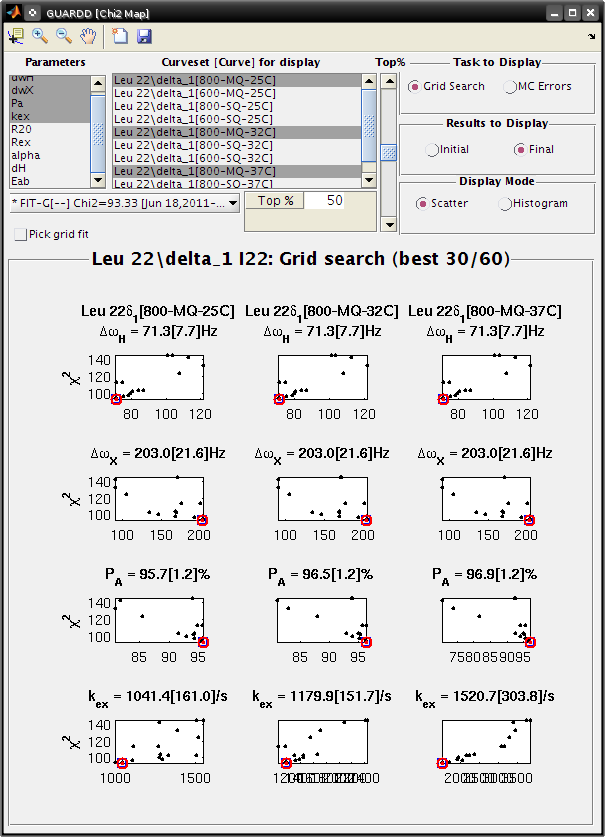
Observe: The best fit is appropriate since the chi2 map remain U-shaped near the best result
Chi2 Map
- Select Fit: FIT-G[–] Chi2=93.33
- Move the Top% slider down to 50% in 4-6 small steps
- Observe: The chi2 map remains U-shaped even as the poorest fits are eliminated from display
View Monte Carlo Errors χ2 Map for good fit
Goal: Assess the extent to which fitting is sensitive to noise in the data
Key info on Monte Carlo analysis
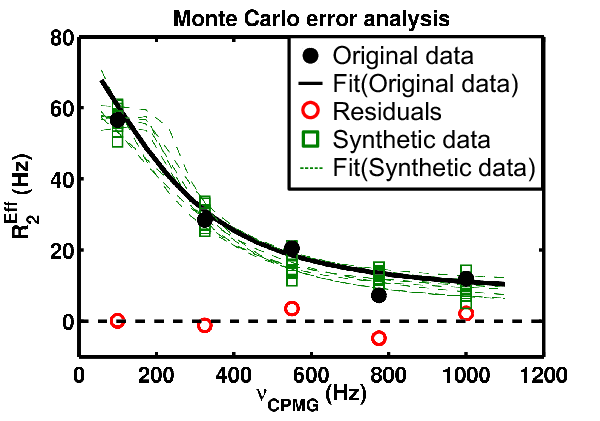
- The goal of MC analysis is to generate and fit many synthetic datasets which differ from one another by an amount related to the goodness of fit to the original data
- Each synthetic dataset will have a different set of optimal fit values (e.g., PA kex)
- The distribution of fitted values reflects the degree to which the original data define its own optimal values
- Example: A worse optimal fit to the original data yields more different MC datasets and therefore more differentoptimal parameter values
- Details: Read more about Monte Carlo error estimation in the Manual
Chi2 Map
- Make sure Fit: FIT-G[–] Chi2=93.33 is selected
- Set Top% slider all the way to the top (100%)
- Task to Display: MC Errors
- Results to Display: Final
- Display Mode: Scatter
Goal: Interpret the MC Errors results in the χ2 Map window
Each subplot shows a single parameter on the X-axis, and its different values in different fits
Each black point corresponds to ONE optimized fit result to a synthetic MC dataset
- There are 100 fits in this example (hence 100 points in each subplot), each of which corresponds to a synthetic MC dataset
- The initial conditions to each fit are given by the best fit to the original data (see Results to display: Initial)
The red circle designates the best fit to the original data
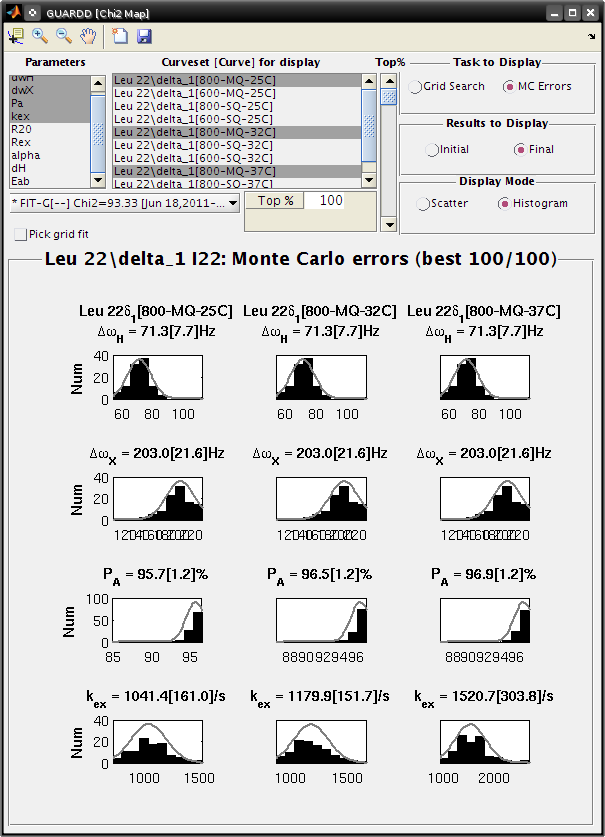
Set Display Mode: Histogram
The gray lines show the hypothetical distributions reflecting “errors” in the data
- The mean of each distribution is from the best fit value to the original data
- The standard deviation of each distribution is the standard deviation from the distribution of MC fitted values
- Each deviation is reported as the “error” in each fitted parameter (shown in brackets)
- Note: it is usually best to use a Top% =100% for MC errors
- Sometimes anomalous fits yield very large χ2, and can be discarded, but this is rare
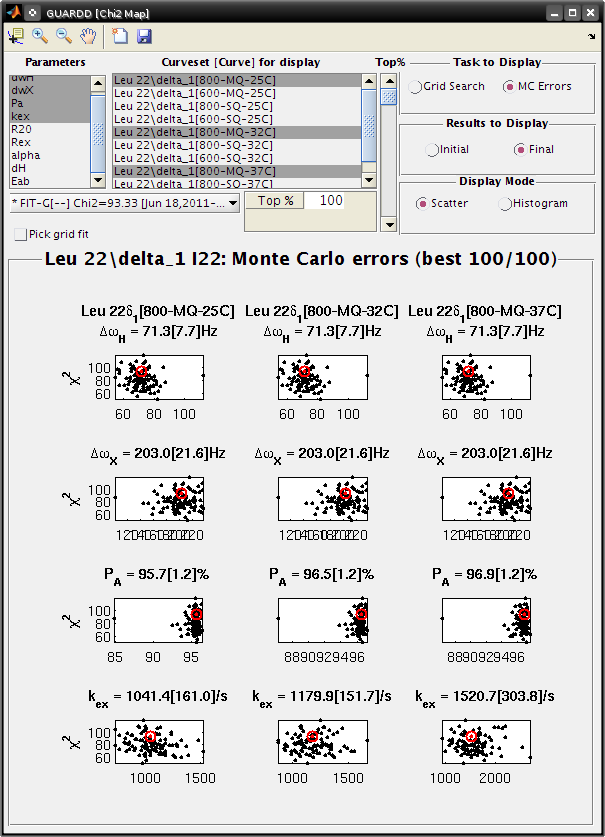
Observe: The symmetry of the MC χ2 maps indicate reliable estimation of error, and is consistent with reasonable parameter values
- The scatter plot illustrates a circular distribution about the optimal result
- The histogram is roughly symmetric, and is well-described by the standard deviation
View Grid Search χ2 Map for fit with unknown parameters
Goal: Illustrate features of Grid Search and MC Errors which correspond to a partially-defined fit
Ile 43, a good fit with unknown parameters
- Small dataset (4 curves)
- α = 1.4-1.9: fast exchange
- Grid search: two solution with different values
- MC Errors: very wide, reflecting many fitting soltuions
- Parameters: PA and Δω unknown
Main
- Select Ile 43 delta1
- Output…Display chi2 map…
- Analysis…Fit dispersion…
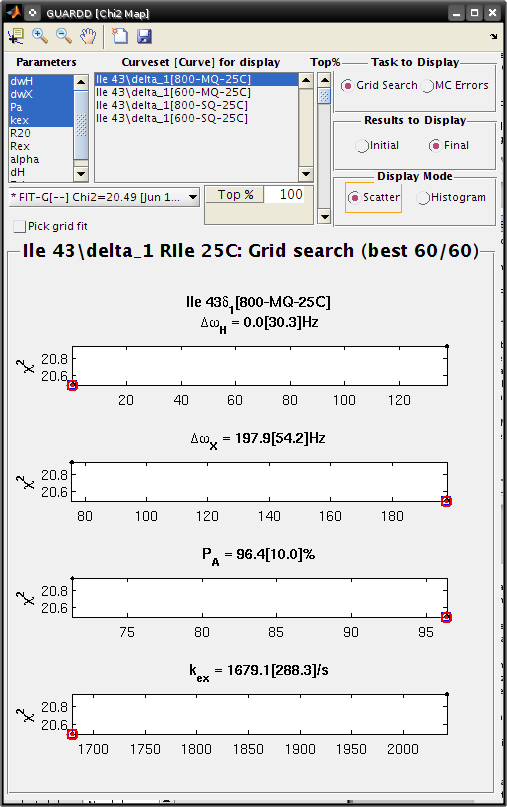
Chi2 Map
- Parameters: dwH, dwX, Pa, kex
- Curveset (Curve)*: 800-MQ-25C
- Top% slider all the way to the top (100%)
- Fit: FIT-G[–] Chi2=20.49
- Task to Display: Grid Search
- Results to Display: Final
- Display Mode: Scatter
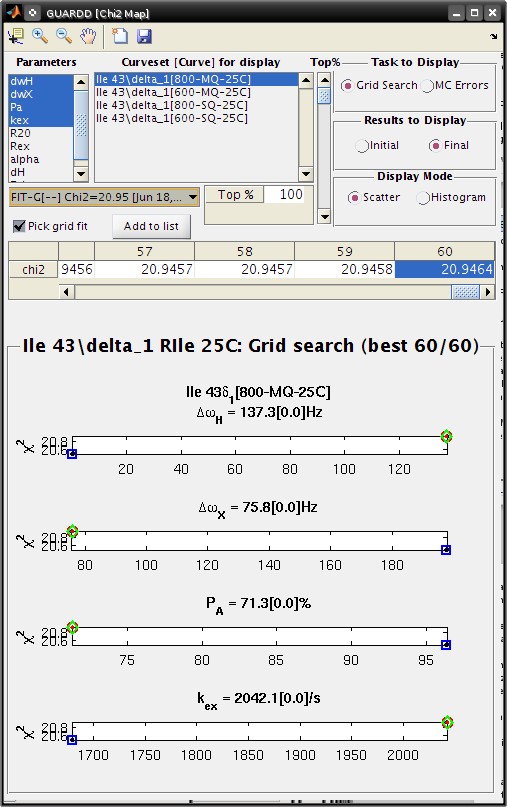
Observe: The grid search illutrates solutions at two distinct points
Goal: Add the higher-χ2 fit to the fit list for further inspection
Chi2 Map
- Check Pick grid fit
- Scroll to the right, and select fit number 60, chi2=20.9464 (or number 93, 20.9456 in v.2011/09/11)
- The green diamond should highlight this fit
- Click Add to list
- The fit FIT-G[–] Chi2=20.95 is now highlighted by the green diamond and red circle (since it is selected)
Fit RD
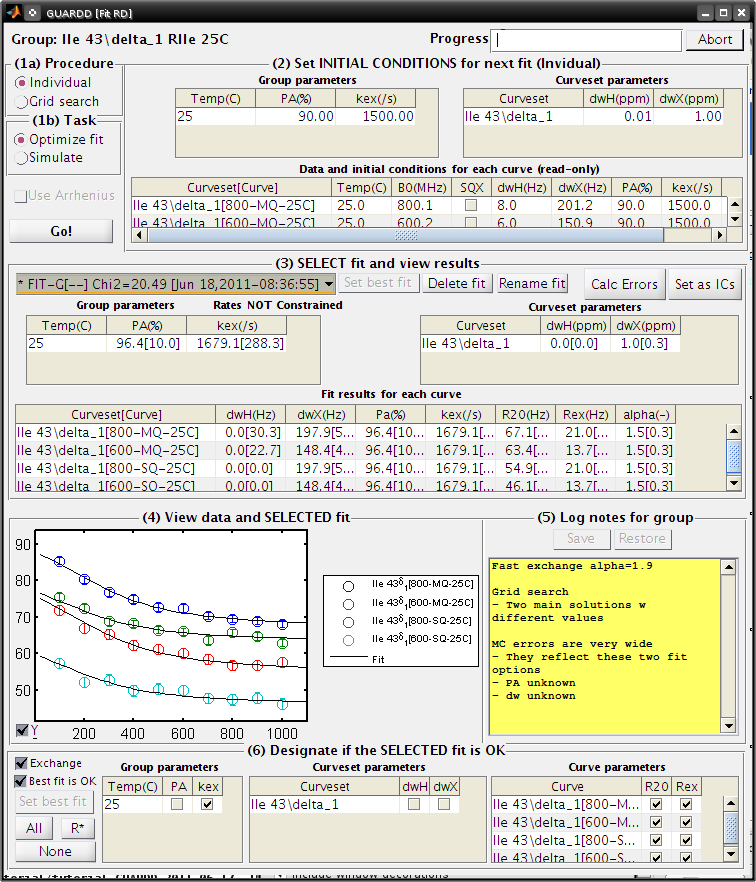
- (3) SELECT the new fit FIT-G[–] Chi2=20.95 from the list
- Note: if it is not shown, the list can be update by re-selecting any fit on the list (then check again)
- Observe: These two fits both appear to go through the data! (which one is best?)
- Note: Residuals can be compared using the Display RD window
For now, we will continue to analyze the lower-χ2 fit
View Monte Carlo Errors χ2 Map for fit with uknown parameters
Goal: Illustrate features of Grid Search and MC Errors which correspond to a partially-defined fit
Chi2 Map
- Make sure Fit: FIT-G[–] Chi2=20.49 is selected
- Set Top% slider all the way to the top (100%)
- Task to Display: MC Errors
- Results to Display: Final
- Display Mode: Scatter
- Observe: A wide range of Δω and PA values can describe these data → Δω and PA are not OK!
- Close Chi2 Map window
Goal: Mark these parameters as “Not OK” in the Fit RD window
Fit RD
- (3) SELECT the fit FIT-G[–] Chi2=20.49 from the list
- (6) Designate which elements of this fit are OK
- Exchange: check
- Best fit is OK: check
- Click Set best fit, if possible (should be “best” already)
- Cilck All
- Group parameters: uncheck PA
- Curveset parameters: uncheck both dwH and dwX
- Make note of this in the (5) Log notes for group panel (or take note of the current note)
- Close Fit RD window
Document notes for organization
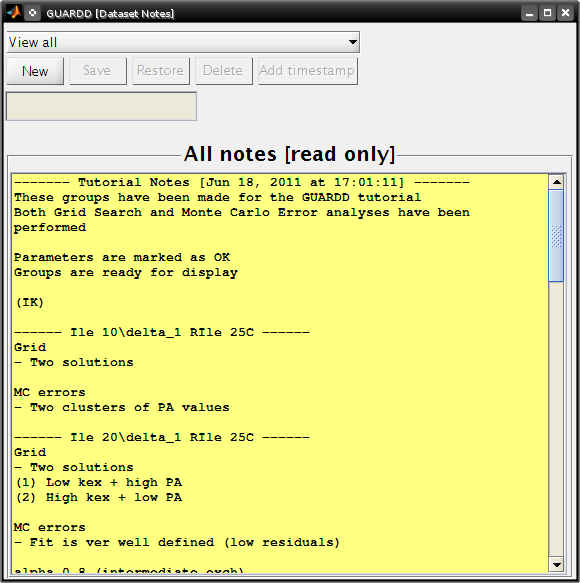
Goal: View and maintain organized notes for interpreting fit results
Main
- Analysis…Notes…
Notes
- Notes on groups are edited in the Fit RD window
- Notes on the session can be created and edited in the Notes window
- Close the Notes window
Output results
Goal: Aggregate and output any/all results for dissemination
View results in display cluster
Goal: Visual display of results from all groups
Goal: Load GUARDD session with data already fit (in case this has not been done already)
Main
- Input…Load session…
- Select tutorial file:
tutorial/data/GUARDD-Session-Tutorial.mat
or
GUARDD-Session--Tutorial-After_Break.mat
in v.2011.09.11
This session contains data from above, with completed 60-point grid search and MC errors (150 point grid for tutorial file in GUARDD v.2011.09.11)
Goal: Create two display groups to compare different fitting constraints
Main
- Output…Display group results…
Groups
- Click New
- Set name: Isolated fits
- Click Save
- Panel All Groups, select all groups except Leu 22
- Click Add
- Click New
- Set name: Group fits
- Set RGB to 1 0 0 (for the color Red)
- Click Save
- Panel All Groups, select only Leu 22
- Click Add
Goal: Compare individual fits from each NMR probe to form candidate groups, identify outliers, etc.
Groups
Panel
Display settings
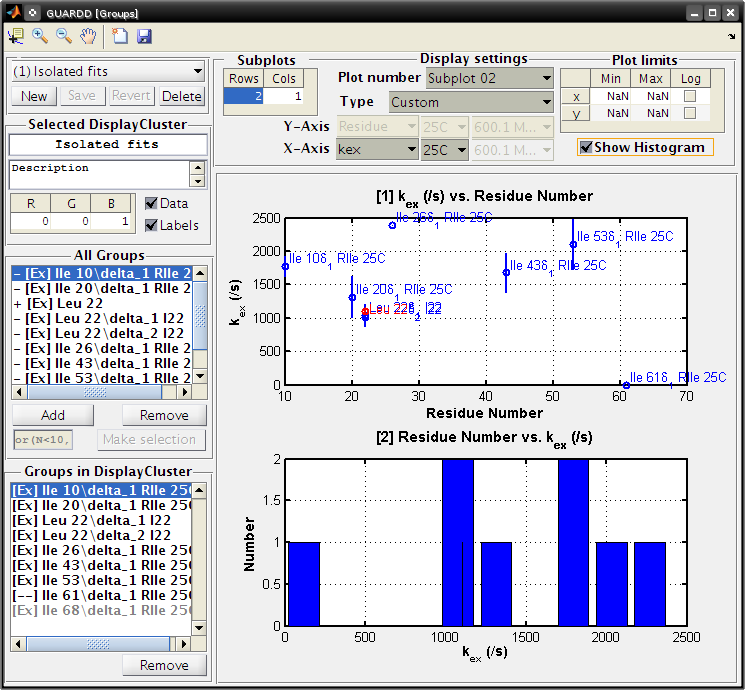
Select plot type: Kinetic rate (25C)
Note: Differences in kA and kB values indicates the extent of site-specific motion in the protein
Note: Global fit for Leu 22 (red) is close to both individual fits for Leu 22δ_1 and Leu 22δ_2 (blue)
Set Subplots: Rows=2, Cols=1
Plot number: Subplot 01
- Type: Custom
- Y-Axis: kex, 25C
- X-Axis: Residue
Plot number: Subplot 02
- Type: Custom
- Check Show Histogram
- X-Axis: kex, 25C
Click the Save Figure icon in the title bar
- GUARDD will prepare a filename for saving, and you must type the file extension
- Type ps to save as a postscript file and click Save (or hit Enter)
Close Groups window
Bug: Selecting dwX_ppm results in an error involving iscolumn() in some versions of MATLAB (at least R2009a on Windows)
View results in table
Goal: Aggregate and output any/all results for dissemination
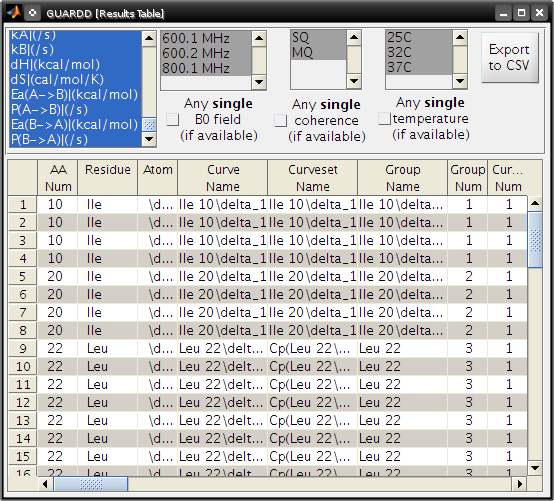
- Main
- Output…Display results table…
- Results Table
- Select all display parameters in left-most list
- Select all conditions in the following three lists
- Click Export to CSV
Bug: Selecting all items in the table results in an error in some versions of MATLAB (at least R2009a on Windows)
Export data and groups
Goal: Aggregate and output results for dissemination
Main
- Input…Data manager…
Data Manager
- Output…Datasets…
- Save the file
- This copies all imported datasets
- Output…Groups…
- Save the file
- Contains all groups, curvesets, and curves created for analysis
Simulate and export RD data
Goal: Explore the nature of RD phenomena
- Question: What are limits of detection (i.e., when is Rex>0)?
Simulate multi-field dataset
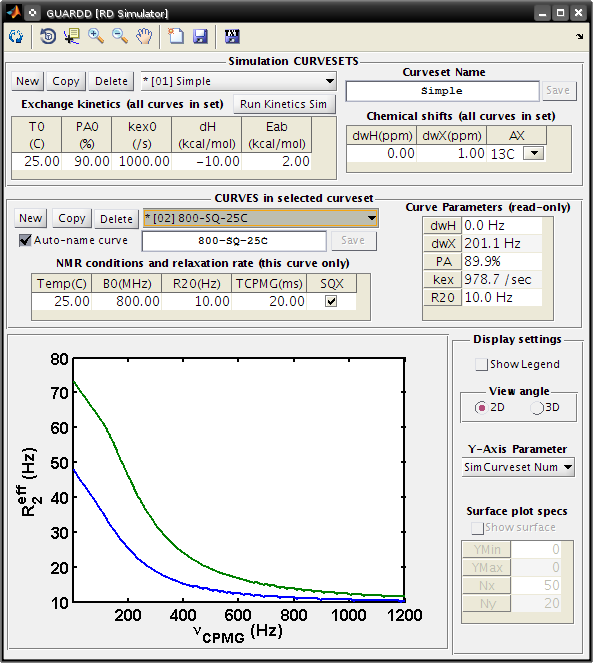
Goal: Simulate a simple dataset at two magnetic fields
Main
- Input…RD Simulator…
RD Simulator
Create a new SimCurveset, which specifies kinetics and chemical shifts for all curves within
- CURVESETS: Click New
- Set Name to Simple
- Click Save
Create a new SimCurve, which specifies NMR conditions for simulation
- CURVES: Click New
- Set B0(MHz) to 500
- CURVES: Click New
Simulate multi-field, multi-temperature dataset
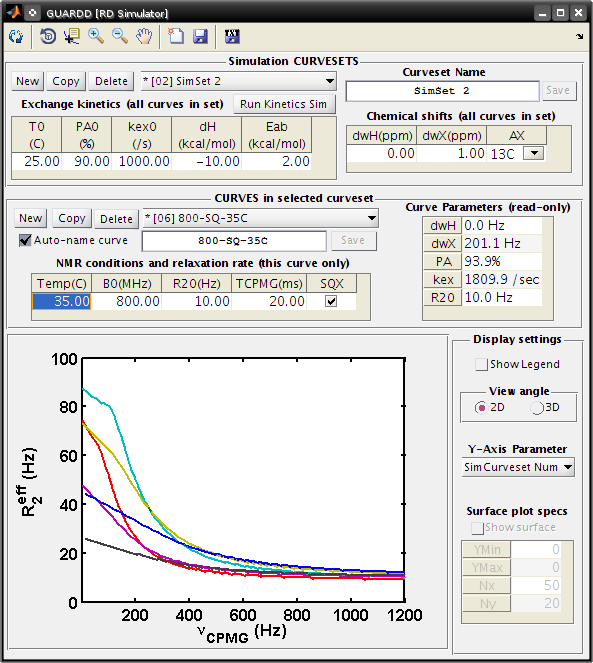
Goal: Simulate a dataset at two magnetic fields and three temperatures
RD Simulator
Create a new SimCurveset
- CURVESETS: Click New
Create two new SimCurves at 15C (500 MHz and 800 MHz)
- CURVES: Click New
- Set Temp(C) to 15
- Set B0(MHz) to 500
- CURVES: Click New
- Set Temp(C) to 15
Create two new SimCurves at 25C (500 MHz and 800 MHz)
- CURVES: Click New
- Set B0(MHz) to 500
- CURVES: Click New
Create two new SimCurves at 35C (500 MHz and 800 MHz)
- CURVES: Click New
- Set Temp(C) to 35
- Set B0(MHz) to 500
- CURVES: Click New
- Set Temp(C) to 35
Explore experimental condtions for observing RD
Goal: Explore the nature of RD phenomena using surface plot
Note: Please complete prior tutorial section before proceeding
Question: What temperature range is appropriate for acquisition?
RD Simulator
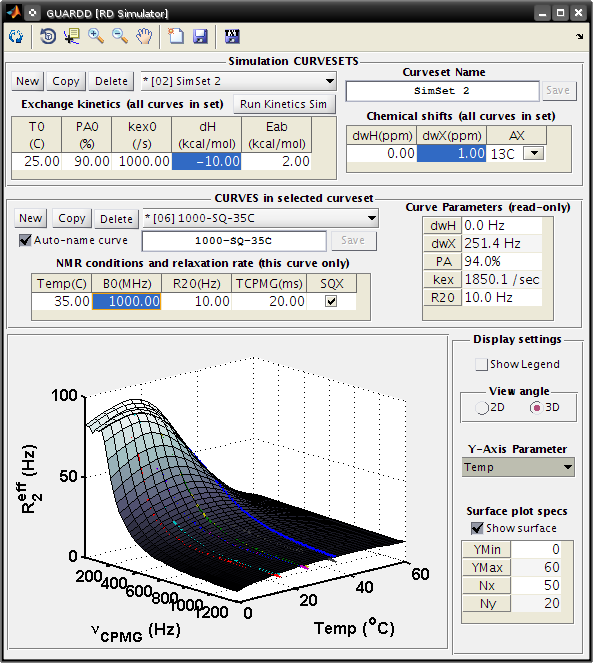
- Display settings: click 3D angle
- Set Y-Axis Parameter to Temp
- Check Show surface
Observations
- For these exchange kinetics, the largest dispersions are observed around 10-20C, and therefore experiments should be focused there
- The RD curve is nearly undetectable above 50C because kex is too large compared to ΔωX(Hz)
Change chemical shift to observe the effect on the RD signal
CURVESET: Set *dwX(ppm)* to 0.50
Observations
- With smaller ΔωX(ppm), the dispersions are smaller, because kex is larger in comparison
CURVESET: Set *dwX(ppm)* back to 1.00
Change magnetic field strength to observe the effect on the RD signal
CURVE: Set B0(MHz) to 1000
Observations
- At higher field strength, dispersions are larger, becuse ΔωX(Hz) is increased
Explore temperature-dependence of exchange kinetics
Goal: Explore the nature of exchange kinetics using the Kinetic Simulator
Note: Please complete prior tutorial section before proceeding
RD Simulator
- Start the Kinetic Simulator
- CURVESET: Click *Run Kinetics Sim*
Kinetic Simulator
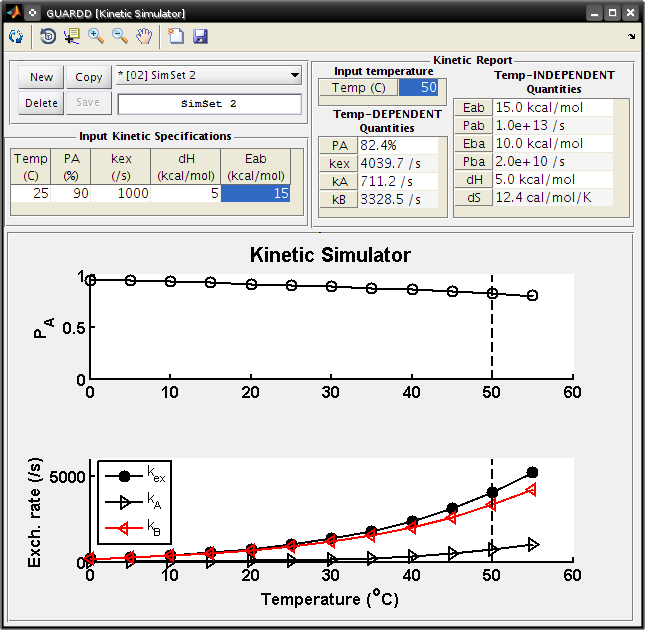
- This window operates on the Sim Curvesets, and displays the effect of temperature on the RD parameters PA and kex
- Select SimSet 2 from the pull-down menus
- Alter the kinetic parameters in the Input Kinetic Specifications table
- Set dH to 5
- Now, PA will decrease with increasing temperature
- Set Eab to 15
- This ensures that kex still increases with temperature
- Check the Kinetic Report for the quantitative values of exchange parameters
- Set Input temperature to 50
Observe: PA is 82.4% and kex is 4039.7 /s
Check this effect on the simulated RD surface plot
RD Simulator
- Click the Refresh display icon in the title bar
- Observe: The RD signal now increases with temperature, because the population of the minor state, PB = (1-PA), becomes larger at higher temperatures
Kinetic Simulator
- Close the window (X)
Export simulated data
Goal: Assess accuracy of fitting procedure by analyzing data with “known” solution
Note: Please complete prior tutorial section before proceeding
RD Simulator
- Click the Export icon in the title bar
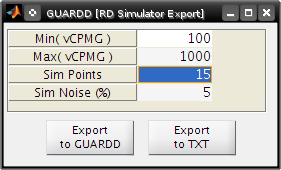
RD Simulator Export
- Set Sim Points to 15
- Click Export to TXT
- Save the file
RD Simulator
- Click the Export icon in the title bar
- Set Sim Points to 15
- Click Export to GUARDD
- This automatically creates a Group for each simulated Curveset
- Note 3: Simulated groups can be viewed in the Main window and/or the Data Manager, just like any other group
- Fitting can be accomplished as per the simple group or for the multi-temperature group.
- Fits of these data should achieve within 10% accuracy of the simulation conditions
This concludes the tutorial!